Custom Search

Paragraph Formatting

In Word, the term 'paragraph' means any amount of text, graphics, objects, or other items that are followed by a paragraph mark (¶), which is inserted into the document each time you press the ENTER key. You can show or hide the paragraph marks by clicking the Show/Hide button on the Standard toolbar. When you format a paragraph, you actually format a block of text and inserted objects that is followed by a paragraph mark. The paragraph mark stores all the formatting information for the paragraph.


Paragraph formats affect the appearance of the entire selected paragraph, not just certain words or lines of text within a paragraph. The appearance of a document depends largely on the formatting you apply to the various paragraphs.

Examples of formats you can apply to paragraphs include:
  • Alignment
  • Tabs
  • Line spacing
  • Paragraph spacing
  • Indentation
  • Dropped initial capital letter
  • Borders and shading
  • Bullets and numbering
  • etc.


Points to Note About Paragraph Formatting
  • Only selected paragraphs are affected by the formats you specify for paragraphs in Word.
  • You can change the formatting of a paragraph. To do this, you need to select the specific paragraph and then apply the necessary formats.
  • You do not have to select all the text in a paragraph before you can format it. Simply positioning the insertion point anywhere in the paragraph, or selecting any amount of text in the paragraph will suffice.
  • On positioning the insertion point in the paragraph or selecting any amount of text in it, any formats you apply will affect the entire paragraph.


Having gotten these points into mind, let us proceed to discuss the various paragraph formats in Word.


Text Alignment Explained
The term 'alignment', in Word, means how text or objects in a document is flushed with the margins. It is one of the various ways text is positioned horizontally in line with the left margin, right margin, both or within them.

By default settings, Word aligns text flush left with the left margin. The alignment type you select affects the entire selected paragraph.

Basically, text can aligned left, centered, right or justified in Word.

To align text, you basically select the paragraph (or simply place the insertion point anywhere in it) and then choose the command or button corresponding to the alignment type.  You can align text quickly by choosing a command from the keyboard or the toolbar. The table below shows a list of buttons on the Formatting toolbar and corresponding shortcut keys that are used to perform different alignment operations in Word.

TO ALIGN CLICK THIS BUTTON or PRESS THESE KEYS
Left
Ctrl + L
Centered
Ctrl + E
Right
Ctrl + R
Justified
Ctrl + J


Align Text Left
Word is preset to align text flush left with the left margin. As such, text is aligned at the left indent, leaving a ragged or uneven right edge. This is called left justified. Example

 TIPSince text is aligned with the left margin at the left indent, be sure not to indent the paragraph before aligning text left.


Centered Alignment
Centered alignment centers a paragraph horizontally between indents, leaving the left and right edges ragged. However, it is an ideal alignment style for article headings, as well as typing the stanzas of poems on a page. Example

TIPAs noted earlier, be sure a paragraph is not indented before centering it.


Align Text Right
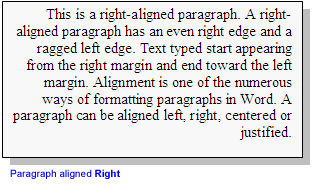
When you choose the align text right command, the selected paragraph is flushed right with the right margin, and aligned at the right indent, leaving the paragraph ragged at the left edge. This is also called right justified because the lines of the paragraph text are evenly aligned at the right indent but the left edge shows uneven lines. A paragraph should not be indented before aligning it right. Example


Justified Text Alignment
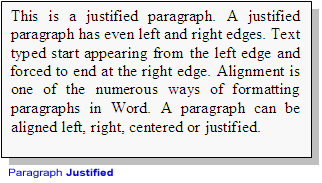
This aligns a paragraph (text) at both the left and right indents, leaving both the left and right edges even. Note however, that Word does not justify the last line of a paragraph or a short one-lined paragraph. When a paragraph is justified, Word evens out the lines at the left and right edges, forcing lines to start at the left edge and end at the right edge, hyphenating and adjusting character spacing where necessary.


Steps to Align Text Using the Paragraph Dialog Box
  1. Select the paragraphs, or position the insertion point in the paragraph, you want to align.
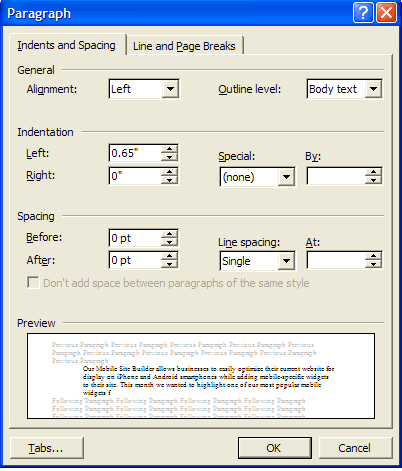
  2. On the Format menu, click Paragraph. Paragraph dialog box displays.
  3. Click the Indents and Spacing tab.
  4. In the Alignment box, select the type of alignment you want.
  5. Click OK.
Paragraph dialog box


Indentation
Indents enable you to set off a paragraph from other text or margin, changing its distance from other text or margin, to make the text more readable.

Indents can be increased or decreased. Generally, increasing or decreasing indents alters the distance between the selected paragraph and the margin or other text.

Increasing indents for a paragraph adds to the white space between the paragraph and the margin, thereby decreasing the text area for the paragraph. On the other hand, decreasing indents for a paragraph constricts the space between the margin and the paragraph, making the text area wider.

You can specify a negative indent measurement for the indent of a paragraph to create a 'negative' that runs text into the left or right margin.

In Word, you can create a variety of indents, such as left indent, right indent, first line indent, and hanging indent.

Generally, a paragraph can be indented using:
  • Shortcut keys.
  • Formatting toolbar buttons.
  • Ruler bar.
  • Paragraph dialog box.


Indent Paragraphs Using Shortcut Keys
You basically move indent markers to create an indent. This can be done using the keyboard.
  1. Select the paragraphs or simply place the insertion point in the paragraph to be indented.
  2. Follow the instructions in the following table:
PRESSTO INDENT
AND TO
Ctrl + MEntire paragraph with the next tab stopCreate an increased left indent of the entire paragraph
Ctrl + Shift + MEntire paragraph with the previous tab stop Decrease the left indent of the entire paragraph
Ctrl + TThe second line and forward of paragraph(s) with the next tab stopCreate a Hanging indent
Ctrl + Shift + TThe second line and forward of paragraph (s) with the previous tab stopDecrease Hanging indent


Indent Paragraphs Using the Formatting Toolbar
The Formatting toolbar offers two buttons that can be used to increase or decrease indents for the entire selected paragraph. These buttons move the indent marker by one tab stop.
Steps
  1. Select the paragraphs or position the cursor in the paragraph to be indented.
  2. Click the Formatting toolbar buttons shown in the following table to indent paragraphs as indicated:
CLICK
TO
Button
Name
Increase Indent Indent a paragraph to the next tab stop
Decrease Indent Indent a paragraph to the previous tab stop

These indent buttons are very useful in indenting addresses in a letter. Example


Indent Paragraphs Using the Ruler bar
On the horizontal Ruler bar are indent markers you can drag to a desired location to create paragraph indents.  
To set indents using the ruler
  1. Select the paragraphs or position the insertion point in the paragraph to be indented.
  2. Drag the appropriate indent marker to a new desired location (left or right) on the horizontal ruler. Please refer to the table below for information about the looks of the indent markers and their respective uses.
NAME MARKER PURPOSE
First Line Indent
Dragged to set the first-line indent, measured relative to the left indent.
Hanging Indent        
(the coned upper half)
Dragged to create a 'hanging' indent whereby, the first line hangs above subsequent lines of a selected paragraph. The subsequent lines beneath the first line are called turnover lines and are indented from the left margin.
Left Indent
(the boxed lower half)
Dragged to set first-line and left indent whereby, both the first line and subsequent lines of a paragraph are indented from the left margin.
Right Indent
Dragged to set the right indent.


Indent Paragraphs Using the Paragraph Dialog Box
The Paragraph dialog box, which you invoke by choosing the Paragraph command on the Format menu, enables you to define precise measurements values for indenting paragraphs. Here, you can enter measurement values and then indicate what type of indent you want to create, without having to grope around the Ruler bar for the appropriate marker, or doing trial and error with the shortcut keys. The Paragraph dialog box offers types of indents you can create by defining precise values. These are:
  • Left indent
  • Right indent
  • First line indent
  • Hanging indent
  • (Negative indent)
 Paragraph Dialog Box


Left Indent
This indicates the amount of space by which the entire selected paragraph is to be pushed away from the left margin. It is measured from the left margin, and applies to the entire selected paragraph. It moves the Left Indent marker (on the Horizontal Ruler) to the location specified and both first-line and turnover lines are moved accordingly.

To set a left indent for paragraphs
  1. Select the paragraphs or position the insertion point in the paragraph to be indented.
  2. On the Format menu, click Paragraph. The Paragraph dialog box will appear. 
  3. Click the Indents and Spacing tab to show the Indents and Spacing tab page options.
  4. Enter a specific value (e.g 0.65") for the left indent in the Left box, inside the Indentation section.
  5. Click the OK button.
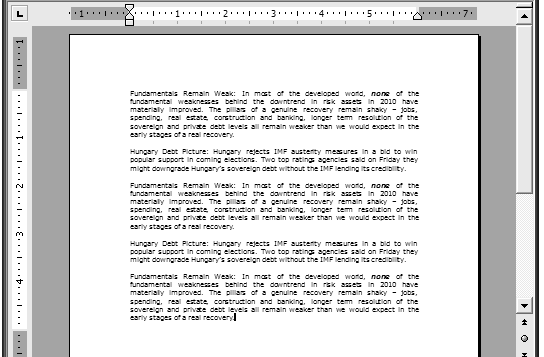
Example: Before and after formatting paragraphs with Left Indent command.
Select paragraphs and choose the command Left  Indent: (Notice the new position of the Left Indent markers in relation to the indented paragraphs.)  


Right Indent
Right indent is measured from the right margin. It defines the amount of space between the right edge of the selected paragraph and the right margin.

To create a right indent for paragraphs
  1. Select the paragraphs to be indented from the right margin.
  2. On the Formatting toolbar, choose the Paragraph command. The Paragraph dialog box appears.
  3. Click the Indents and Spacing tab to show the Indents and Spacing tab page options.
  4. Enter a value for the right right indent in the Right box.
  5. Click OK.
Example: Before and after formatting paragraphs with Right Indent command.
               
Select the desired paragraphsRight Indent. (Notice the new position of the Right Indent marker, on the ruler, in relation to the distance of the right edge of the selected paragraphs from the right margin.)


First Line Indent
This is a special left indent. It is measured relative to the left indent and affects only the first line of the selected paragraph, leaving the subsequent lines at the left indent positions. Setting the first-line indent for paragraphs before you start creating the paragraphs will save you the stress of pressing the TAB key each time you begin a new paragraph.

To create a first-line indent for paragraphs
  1. Select the desired paragraphs.
  2. On the Formatting toolbar, choose the Paragraph command. The Paragraph dialog box appears.
  3. Click the Indents and Spacing tab to show the Indents and Spacing tab page options.
  4. In the Special box, click First Line to indent only the first line of the selected paragraph.
  5. In the By box, enter a value for the amount of indentation for the first line.
  6. Click OK.
Example: Before and after formatting paragraphs with First Line Indent command.
Paragraphs not indented First-Line Indented paragraphs. (Notice the new position of the First Line Indent marker on the ruler in relation to the first lines of the affected paragraphs.)


Hanging Indent
Hanging indent is a special indentation type which indents all but the first line of the selected paragraph. In this way, the first line and subsequent lines have different distances from the left margin or the left indent. In other words, hanging indent does not affect the first line of the selected paragraph, but the subsequent lines only, creating turnover lines with the first line hanging or 'dangling loosely' on its own over the turnover lines.

Hanging indent is a good option for creating bibliographies in articles, bulleted and numbered lists, and glossary entries.

To create a hanging indent for paragraphs
  1. Select the desired paragraphs.
  2. On the Formatting toolbar, choose the Paragraph command. The Paragraph dialog box appears.
  3. Click the Indents and Spacing tab to show the Indents and Spacing tab page options.
  4. In the Special box, click Hanging to indent all but the first line of the selected paragraph.
  5. In the By box, enter a value for the amount of indentation for the hanging indent.
  6. Click OK.

Example: Before and after formatting paragraphs with Hanging Indent command.
Select the desired paragraphs and issue the Hanging indent command. Hanging Indent: (Notice the indentations of the first lines and the turnover lines, and the indent markers)


How to Create a Hanging Indent Using the Ruler Bar
This is a little nerdy but fun to try and very easy once you get the hang of it. It simply shows your creativity.
  1. Select the desired paragraphs or position the insertion point in the desired paragraph.
  2. Drag the Left Indent marker right, to a desired position on the Horizontal Ruler.
  3. Drag the First Line Indent marker left, preferably to the previous position on the Horizontal Ruler.
  4. Release the mouse button.
Whee! You have just created a hanging indent from the ruler. How creative!


Creating a Negative Indent

You can also create a spectacular indent that runs selected paragraphs into the left or the right margin. Though the left negative indent makes more sense and more appropriate. Negative indent is another name for an Outdented paragraph. You create a negative indent by specifying a negative value for indent measurements. To make this kind of indentation pretty drastic, or spectacular, you need to give a higher left or right margin, e.g 2.5", depending on the margin into which you want to extend the paragraph.

Negative indent is great for displaying chapter headings, subheadings, etc.
To create a Negative indent for paragraphs Using the Paragraph dialog box
  1. Select the paragraph to be extended into the margin, preferably a one-line paragraph.
  2. On the Formatting toolbar, choose the Paragraph command. The Paragraph dialog box appears.
  3. Type a negative number in the Left box to create a negative left indent.
  4. Select None option from the Special list box.
  5. Click OK.
Example: Before and after formatting paragraphs with Negative Indent.
              
Before outdenting paragraphs.Negative Indent: You can see the indent markers running farther into the left margin, and the selected paragraphs moving appropriately with them.


TIPTo set a left negative indent using the horizontal ruler, drag the Left Indent marker to the position where you want the paragraph to start.


Remove Paragraph Indentation
  1. Select the paragraphs from which to remove indentation.
  2. Do one or more of the following:

    • To remove a left indent from the selected paragraph, change the number in the Left box to 0".
    • To remove a right indent from the selected paragraph, change the number in the Right box to 0".
    • To remove special indentation formatting (First Line Indent or Hanging Indent), click None in the Special box.
  3. Click the OK button.


RELATED POSTS

Character Formatting


This post discusses extensively what character formatting entails. You will learn how to perform  character formatting tasks such as changing the font, font style, size, color, and other effects and animations, using the Format menu, formatting toolbar or shortcut keys.

Characters are letters, numerals, spaces, punctuation marks and symbols entered from the keyboard/onscreen keyboard (such as @, #, %, & and *) or symbols inserted into the document from the Symbol dialog box or the Character Map (such as ®, ™, φ. ♥, ♫, », Ø, Σ, ∫, ∏, Φ, ☺, ≤, ∞, Ω, №,  ß, etc).

Character formatting in Word has to do with applying formatting properties to enhance the appearance of  individual text characters. Character formats can be applied to a single character, word, sentence or a line of text, without such formatting affecting the entire current paragraph. 

Examples of character formats that can be applied to text characters in Word include those you find in the Font dialog box (such as bold, italic, underline, font, size, color, superscript, subscript, scaling, animation effects, etc), highlight, change case, etc. To apply a character format to a character or a set of characters, you need to specifically select the desired amount of characters and then apply the formatting you want.

The following sections provide you extensive instructions on how to format text characters in Word.


Change Font
Font is referred to as the typeface for typed text. In a lame man's language, it can be called 'handwriting'. In real life, people scribble in unique handwritings characterized with different looks, sizes, intensity and spaces. Font is the electronic version of such handwritings.


To change the font in which text is displayed in a Word 2002 document, use any of the following:
  • Format Menu
  • Formatting Toolbar
  • Keyboard Shortcut

Change Font Using the Format Menu
  1. Select the text.
  2. On the Menu bar, click Format to display the Format menu.
  3. From the Format menu, click Font. The Font dialog box appears.
  4. If the Font tab page is not already displayed, click the Font tab to activate it.
  5. Select a font name in the Font box. The Preview box shows how text will be displayed in the selected font.
  6. Click OK button.


Change Font Using the Formatting Toolbar
  1. Select the text.
  2. On the Formatting toolbar, click the drop-down arrow in front of the Font box and click a font name from the font list.


Change Font Using Keyboard Shortcut
  1. Select the text.
  2. Press Ctrl + Shift + F. Word selects the current font name in the Font box on the Formatting toolbar.
  3. Type, or use the arrow keys to select a font name.
  4. Press ENTER.


Change Font Size
You can change the font size of text via
  • The Font dialog box
  • The Formatting toolbar
  • Shortcut keys

Change Font Size Using the Font Dialog Box
  1. Select the text.
  2. From the Format menu, click Font. Font dialog box appears.
  3. Type or select a font size in the Size box.
  4. Click OK.

Change Font Size Using the Formatting Toolbar
  1. Select the desired text.
  2. On the Formatting toolbar, type a desired number in Font Size box, or click the drop-down arrow in the Font Size box and select a desired font size from the Font Size drop-down list.

Change Font Size Using Shortcut Keys
  • To decrease font size by one point (e.g. 12 to 11), press Ctrl + [ .
  • To increase font size by one point (e.g. from 12 to 13), press Ctrl + ] .
  • To decrease font size to the next smaller size (e.g. from 12 to 10), press Ctrl + Shift + <.
  • To increase font size to the next larger size (e.g. from 12 to 14), press Ctrl + Shift + >.
                                                        OR

  1. Select the desired text.
  2. Press Ctrl + Shift + P. The current font size becomes selected in the Font Size box on the Formatting toolbar.
  3. Type, or use the arrow keys to select a font size in the Font Size box.
  4. Press ENTER.


Changing Font Style


The font style in which text is displayed in Word 2002 can be changed using
  • The Font command.
  • The Formatting toolbar.
  • Shortcut keys.

Change Font Style Using the Font Command
  1. Select the text.
  2. From the Format menu, click Font.
  3. In the Style box, select a font style (e.g. Bold, Italic, or Bold Italic)
  4. Click the OK button.


Change Font Style Using the Formatting Toolbar
Select the text whose font style you want to change, and do one or more of the following:
  • On the Formatting toolbar, click Bold (button) to apply bold formatting to the selected text.
  • On the Formatting toolbar, click Italic (button) to italicize the selected text.

Change Font Style Using Shortcut Keys
Select the required text, and do one or combination of the following:
  • Press Ctrl + B, to apply bold formatting.
  • Press Ctrl + I, to italicize text.


Underline Text
One way to emphasize a portion of text in a document is to underline it. You can underline text using any of Font dialog box, Formatting toolbar, or keyboard shortcut. To underline text with a line style and/or color other than the default setting in your document, use the Font dialog box. In the dialog box, you can specify the underline style as well as the underline color.

To underline text quickly using the default underline style, use the Formatting toolbar, or keyboard shortcuts.

Underline Text Using the Font Command
  1. Select the text to be underlined.
  2. On the Format menu, click Font. Font dialog box is displayed.
  3. Click Underline style box, and then click a desired style e.g. Words only.
  4. To make the underline appear in a color different from letter color, select a desired color from the Underline color box.
  5. Click the OK button.


NOTE:

If/since your computer is connected to the internet, the decorative line styles may appear dimmed in the list, and when selected, Word may display a message box stating that the line style you have selected has been disabled because it is not supported by target browsers such as Internet Explorer 4.0 or later or Netscape Navigator 4.0 or later.

When this happens, you can do one of two things:

A). If you intend to display the content of the document in a browser on the intranet/internet, simply stick to the default underline style which is supported and available on all browsers.
B). If you do not intend to display the document on a browser but simply want to use the desired underline style for decorative purpose, you can  suppress the message box and make the underline styles available for use by doing the following:
  1. On the Tools menu, click Options and then click the General tab in the Options dialog box that appears.
  2. Click Web Options button, and then click Browsers tab in the Web Options dialog box that is displayed.
  3. Uncheck the Disable features not supported by these browsers check box.
  4. In the People who view this Web page will be using box, select choose your browser.
  5. Click OK to close the Web Options dialog box.
  6. Click OK to accept your settings and close the Options dialog box.


Underline Text Quickly Using the Formatting Toolbar
  1. Select the text to be underlined.
  2. On the Formatting toolbar, the Underline button.
  • To remove the Underline formatting from text, select the text and Click the Underline button on the Formatting toolbar again, or use alternative methods.


Underline Text Quickly Using Shortcut Keys
  1. Select the desired text.
  2. Do one of the following:
  • Press Ctrl + U to underline both text and spaces.
  • Press Ctrl + Shift + W to underline words only.
  • Press Ctrl + Shift + D to apply double underline style.


Apply Other Effects

Using the Font dialog box, you can apply or remove character formats, such as Hidden Text, Superscript, Subscript, shadows, etc. These formatting options appear under the Effects section of the Font tab page in the Font dialog box. They have check boxes beside them which can be checked (populated/marked, by clicking it using the mouse or by pressing the SPACEBAR on the keyboard when focus is on it) or unchecked (cleared/unmarked, by clicking it or pressing the SPACEBAR on the keyboard when it receives focus) to deselect or remove the effect from the selected text. You can select more than one of such effects and apply them to selected text at once by clicking the OK button. For example, you can check the boxes beside each of Superscript, Strikethrough and Small Caps to select them and then click the OK button to apply them at once to the selected text.

Note however, that some of these effects are mutually exclusive, in that selecting one of such mutually exclusive options makes selecting the other impossible, because both effects cannot be applied to the selected text at the same time. As a result, once you check the box next to one of such mutually exclusive options, Word automatically clears the checkmark from the other option.

Examples of pairs of mutually exclusive formatting effects in Word are:

  • Strikethrough and Double Strikethrough.
  • Superscript and Subscript.
  • Emboss and Engrave.
  • Shadow and Emboss.
  • Shadow and Engrave.
  • Outline and Emboss.
  • Outline and Engrave.
  • All Caps and Small Caps.

To apply one or more formatting effects to selected text,
  1. Select the required text.
  2. On the Format menu, click Font and then click the Font tab in the Font dialog box that appears.
  3. In the Effects section of the Font tab page, click the boxes next to the options you want.
  4. Click the OK button.


Tips:
You can also apply or remove effects using shortcut keys. Examples:
                                                                                                                                                                                                                                                  
Press These KeysTo Do This
CTRL + SHIFT + AApply All Caps formatting to letters.
CTRL + SHIFT + KApply SMALL CAPS formatting to letters.
CTRL + SHIFT + WUnderline words but not spaces.
CTRL + SHIFT + DFormat text with Double-underline.
CTRL + SHIFT + HApply Hidden Text formatting.
CTRL + EQUAL SIGNApply Subscript formatting.
CTRL + SHIFT + PLUS SIGNApply Superscript formatting.
CTRL + SPACEBARRemove manual character formatting.


Change Default Character Formatting
Normally, when you type in Word, text appears in a particular font (Times New Roman); style (Regular); size (12); color (Automatic, i.e. Black); and anytime you underline text, a single tiny line with color same as letter color is placed under the selected text. The aforementioned are some of the default character formatting for the Normal Style (the default text style) in Word and it is used in all new documents you create from the current document template.
Sometimes, however, you choose a different font, style, size, etc, for text, if the preset style is not adequately desirable for your creativity. It you always create documents that use a (character) formatting different in some respects from the Default style, it will be preferable you change the Default (for the Normal Style) to make the new setting available for all new documents you create from the current document template. This will save you some hair, (believe me) in terms of time and effort!

To change the default character formatting

  1. On the Format menu, click Font. Font dialog box appears.
  2. Do one of the following:
  • To set a new default font, type or select a font name in the Font box.
  • To set a new default font style, select an option from the Font Style list box.
  • To set a new default size, type or select the new size from the Size box.
  • To set a new default text color, underline style, and other effects, select them in the appropriate boxes available.
  • If necessary, click the Character Spacing tab or the Text Effects tab and make appropriate selections.
  1. Click the Default button. 'Surprised or wondering whether you simply clicked the button unknowingly'  Word (or the Office Assistant) will display a dialog box asking you to confirm that you really want to change the default font to... for the NORMAL (current) template.
  2. Click YES.
  3. Save the the document.


Character Spacing
Characters are letters, numerals, symbols (such as #, $, ^, &, @, etc ), punctuation marks, and spaces. To enter text in Word, you hit the lettered keys on the keyboard and these input the labeled letters in the document. The letters so entered are closely placed horizontally next to each other to form words, with little spaces after each character (letter) forming the words. This is the normal (default) character spacing.

Characters are combined to form words, with little spaces between them. Each character you enter has a little space after it.  These after-a-character spaces are the spaces seen in-between the characters that form the words in a document. If you like, however, you can adjust the spacing between the characters forming words. This is called character spacing.

Character spacing can either increase or reduce the amount of space after a selected character by the amount you specify. Note that the adjustment depends on the font design and the specific letter pairs.

In Word, character spacing can take any of the following forms:
  • Condensed  e.g   character spacing.
  • Normal        e.g   character spacing.
  • Expanded    e.g    character spacing.
  • You can also specify automatic kerning to have Word reduce the spacing between certain letter pairs to improve the overall appearance of the selected text. Note that automatic kerning can be used only with proportionally spaced TrueType fonts (i.e. fonts having varying width for each character e.g. 'i'
    and 'w' differ in widths) or Adobe Type Manager fonts. In other words, kerning occurs immediately for scaleable fonts larger than the minimum size you specify.


To adjust character spacing
  1. On the Format menu, click Font. Font dialog box is displayed.
  2. Click the Character Spacing tab.
  3. In the Character spacing tab page, do one or more of the following:

TO DO THIS
Reduce the amount of space after the selected character or characters of the selected text
Select Condensed from the Spacing box or specify an amount in the By spin box.
Reduce the amount of space after the selected character or characters of the selected text
Select Expanded from the Spacing box or specify an amount in the By spin box.
Revert the amount of space after the selected character or characters of the selected text to the default
Select Normal from the Spacing box.
Scale the selected text by an amount
Type or choose a scale percentage from the Scale box.
Adjust the vertical positioning of the selected character(s)
Type or choose a percentage from the Position box.
Specify the size at which kerning is performed on TrueType or Adobe Type Manager fonts
Check the Kerning for fonts box and enter a number in the spin box before Points and above.

  1. Click the OK button.


Text Animation
Word also includes a bunch of effects you can use to dazzle up or animate a document onscreen. You should note the following about text effects:
  • Animation options in Word are mutually exclusive, in that you can apply only one animation effect at a time.
  • Animation effects are for on-screen display only: they cannot be printed with document.
  • Animation effects can be applied to both text and graphics.
To apply animation effects to selected document content
  1. Select the document content (text and/objects) to be animated.
  2. On the Format menu, click Font and then click the Text Effects tab on the Font dialog box.
  3. In the Animations box, select the animation effect you want.
  4. Click the OK button.


Highlighting Documents
Sometimes when you read, you use a marker or other appropriate tools to mark points you want to find easily next time. This kind of operation is called highlighting in Word.  In Word, you use the Highlight tool on the Formatting toolbar to mark and find important text or ponts in your document. The following sections provide you the steps needed to apply or remove highlighting from part or all of a document.


Apply Highlighting
  1. On the Formatting toolbar, click HighlightThe mouse  pointer shape changes to a marker with an I-beam pointer.

  1. Using the pointer, select the text or graphic you want to highlight.
  2. Using the pointer also, select the next item in the document that you want to highlight. 
  3. To change the highlighter color, click the arrow next to Highlight , and then click the color you want from the drop-down color palette.
  4. To turn off highlighting, click the button again, or press ESC.


Remove Highlighting from Part or All of A Document
  1. Select the text you want to remove highlighting from, or press CTRL+A to select all of the text in the document.
  2. On the Formatting toolbar, click the arrow next to Highlight, and then click None.


Copying Character Formatting
You can quickly and easily format text by copying character formats from selected text to other text you want in a document. Suppose you have formatted a line as 10-point Arial, bold italic, Pink colored and justified, you can easily copy these settings to other text or all text in the entire document by using either the Format Painter tool or shortcut keys.


Copy Character Formats Using the Format Painter
  1. Select the text whose format you want to copy.
  2. Do one of the following:
  • To copy the formats to only one location, on the Standard toolbar, click the Format Painter button once.
  • To copy the formats to several locations, on the Standard toolbar, double-click the Format Painter button.
  1. When the mouse pointer changes to a paintbrush with an I-beam pointer, select the text to be formatted.
  • If you double-clicked the Format Painter button, select the text you want to format, release the mouse button, and then select additional text anywhere in the document.
  1. When formatting is over, click the Format Painter button again, or simply press the ESC key.


Copy Character Formats Using the Keyboard
  1. Select the text whose format you want to copy.
  2. Press Ctrl + Shift + C.
  3. Select the text to be formatted.
  4. Press Ctrl + Shift + V.


Removing Character Formatting
Sometimes it may be necessary to strip certain text of the character formats that you specifically applied to it using the Font dialog box, Formatting toolbar, or key combinations. The operation will then leave the text in its raw or default character formatting settings. Note though, that you cannot remove from text character formats that are part of the paragraph style of the text.

To remove character formatting from text
  1. Select the text that has the character formats that youi want to remove.
  2. Press Ctrl + Spacebar keys.


Change Case
You can change the capitalization of text quickly in Word using either the keyboard or the Change Case command on the Format menu. This saves you the stress of deleting and re-tying text in a different capitalization.

Change Case Using the Keyboard
  1. Select the text whose case (capitalization) you want to change.
  2. Press Shift + F3 keys repeatedly until the text shows in the case (capitalization) you want.


Change Chase Using the Change Case Command
  1. Select the text whose capitalization you want to change.
  2. On the Format menu, choose the Change Case command. Change Case dialog box appears.
  3. Click the capitalization option you want in the Change case dialog box, and then click OK.
The following are the uses of the options in the Change Case dialog box.

  • Sentence case: capitalizes only the first letter in the selected sentences.
  • lowercase: converts all selected text to lowercase letters ("small letters").
  • UPPERCASE: converts all selected text to uppercase letters ("capital letters").
  • Title Case: capitalizes the first letter of each word of the selected text.
  • tOGGLE cASE: changes uppercase letters to lowercase letters and lowercase letters to uppercase letters for all the selected text.


Thank you for taking your time to read this tutorial. Please continue to drop in again for future updates and helpful tips. Your visits will surely be worth it. I sincerely appreciate your visits and presence here. If you are finding these tutorials and tips informative and helpful, please kindly recommend this blog to your friends. If, on the other hand, there is any area you feel improvement is needed, please kindly forward a piece of advice. These will be highly welcomed and appreciated. Feel free to drop comments or ask questions using the comment box below. Your comments will be promptly reviewed and published and your questions speedily looked into and answered in the best possible manner. Thanks.